NoteGPT Text to Speech

Convert text into natural sounding audio for voiceovers, study notes, and presentations using free notegpt text to speech.

0/100000

Turn Scripts into Clear Narration Using NoteGPT Text to Speech

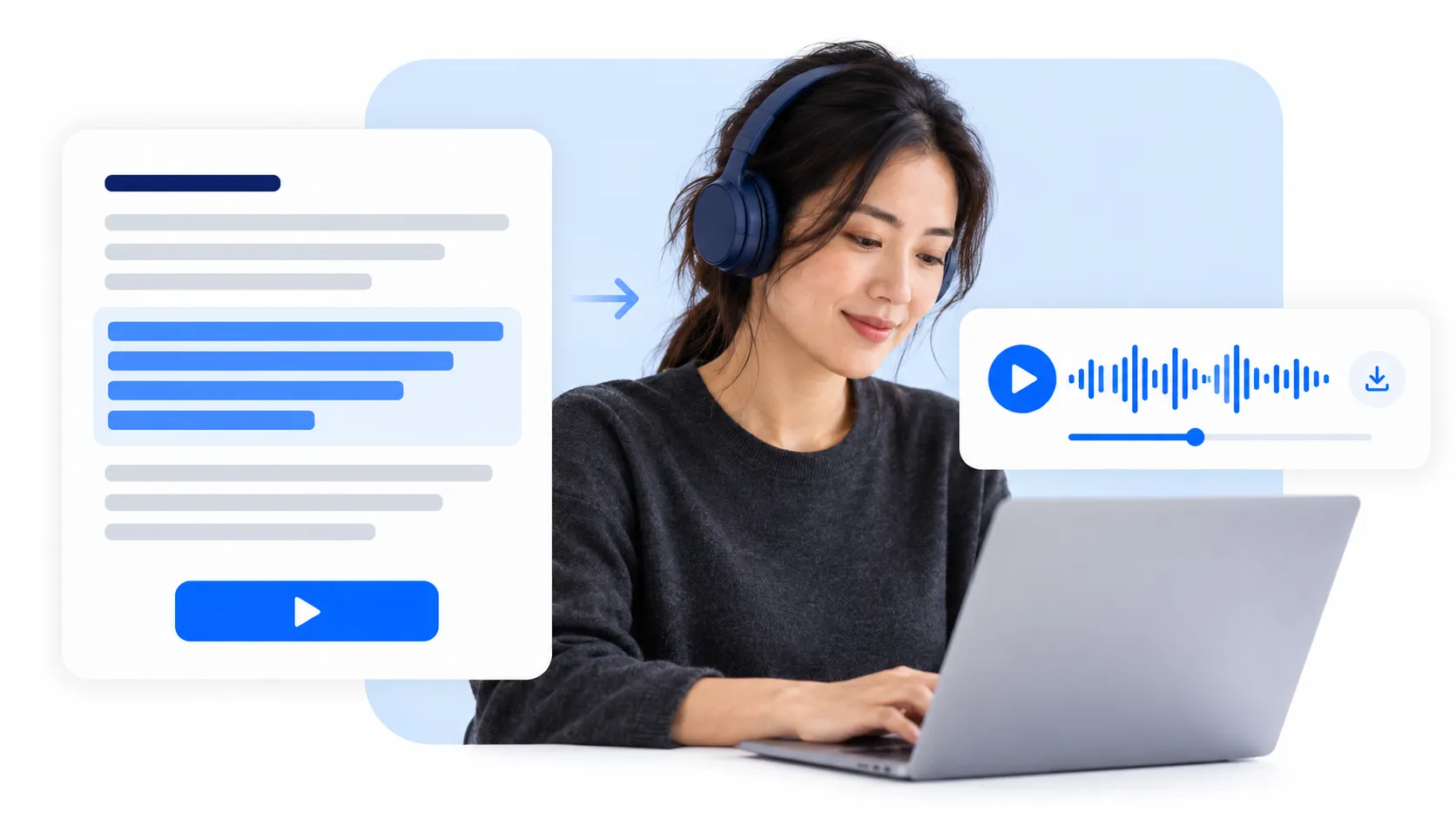
Recording a voiceover can mean finding a quiet room, rehearsing difficult lines, and starting again when something changes. With notegpt text to speech, your written script becomes the starting point for AI narration. Prepare an introduction, explanation, or walkthrough, then hear how the words flow together. You can concentrate on making the message understandable before fitting the recording into your project.

Turn Scripts into Clear Narration Using NoteGPT Text to Speech

Find the Right AI Voice for Your Message

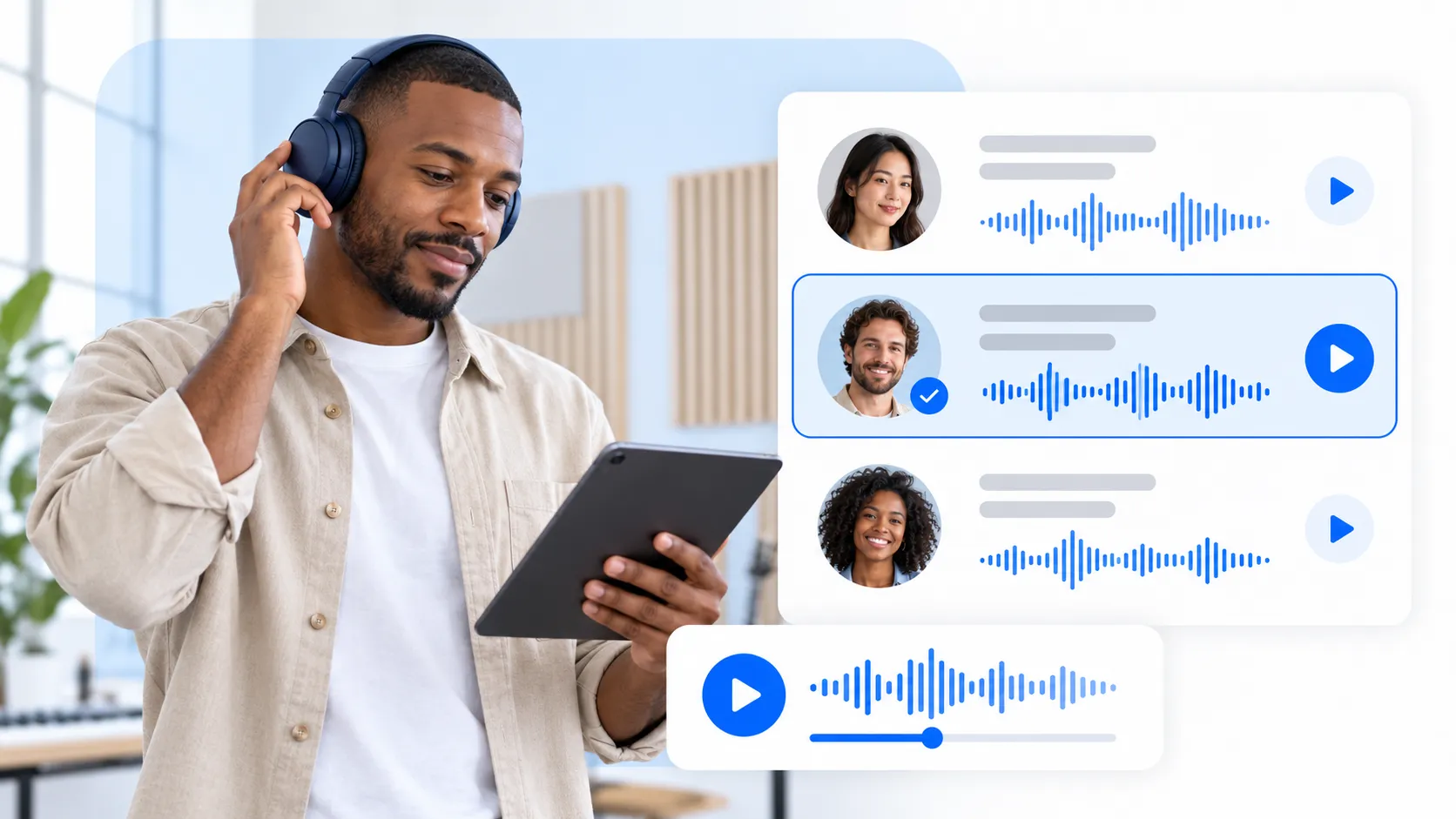
A detailed tutorial needs a different delivery from a cheerful announcement. Rather than choosing a voice from its opening line alone, test a representative passage in notegpt text to speech. Include the names, sentence lengths, and vocabulary your audience will actually hear. Compare the available AI voices for clarity and tone, then choose the one that remains comfortable through the full explanation.

Find the Right AI Voice for Your Message

Reach Listeners Through Multilingual Text to Speech

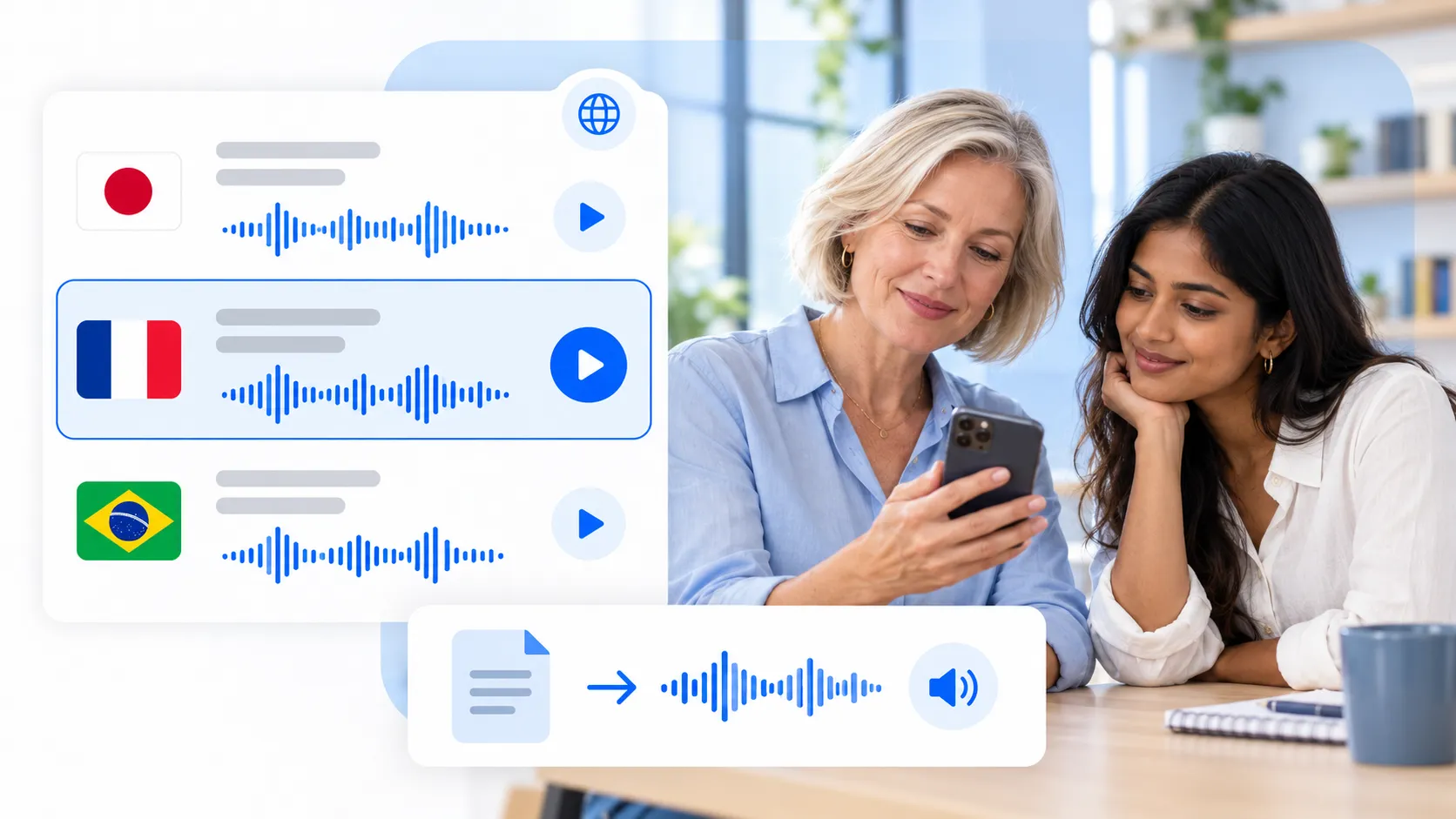
People may understand a subject better when they can hear it in a familiar language. For supported languages, notegpt text to speech lets you prepare audio from a script written for that audience. Check local expressions, units, and names before generating the recording. Translating and reviewing the text first helps preserve meaning, especially when you are adapting lessons, instructions, or customer facing explanations.

Reach Listeners Through Multilingual Text to Speech

Preview Text to Audio Before You Download

A date read incorrectly or a pause in the wrong place can change how a sentence is understood. Preview the output from notegpt text to speech before saving it, paying attention to numbers, abbreviations, and specialist vocabulary. Revise unclear wording and listen again where needed. This final check helps you catch small problems before the audio reaches viewers, learners, or colleagues.

Preview Text to Audio Before You Download

Why Choose NoteGPT Text to Speech?

Keep AI Voiceovers Easier to Update

Product details change, instructions get revised, and presentation scripts rarely stay final forever. Using notegpt text to speech gives you a written source to return to when the message needs updating. Save the approved script alongside its recording, and label versions clearly so the right explanation stays attached to the right project.

Read Text Aloud to Improve Your Writing

Your eyes can skip over repeated words in a familiar draft. An online text reader makes those patterns easier to notice by turning them into something you hear. Follow the text during playback, mark sentences that feel tangled, and remove points that have already been made.

Rehearse Before Recording Your Own Voice

An AI generated draft can help you prepare for a recording session. Listen for difficult transitions, test whether the explanation feels too long, and adjust wording that sounds stiff. When you record yourself, you already have a script that has passed a spoken review.

How to Use NoteGPT Text to Speech in 3 Steps

Step 1: Enter Text for Your AI Speech
Step 1: Enter Text for Your AI Speech

Paste a script, article passage, or set of prepared notes into the input field. Remove page numbers, repeated headers, and stray formatting. Expand bullet points into full sentences when the recording needs to make sense without a screen.
Step 2: Choose a Voice and Generate Audio

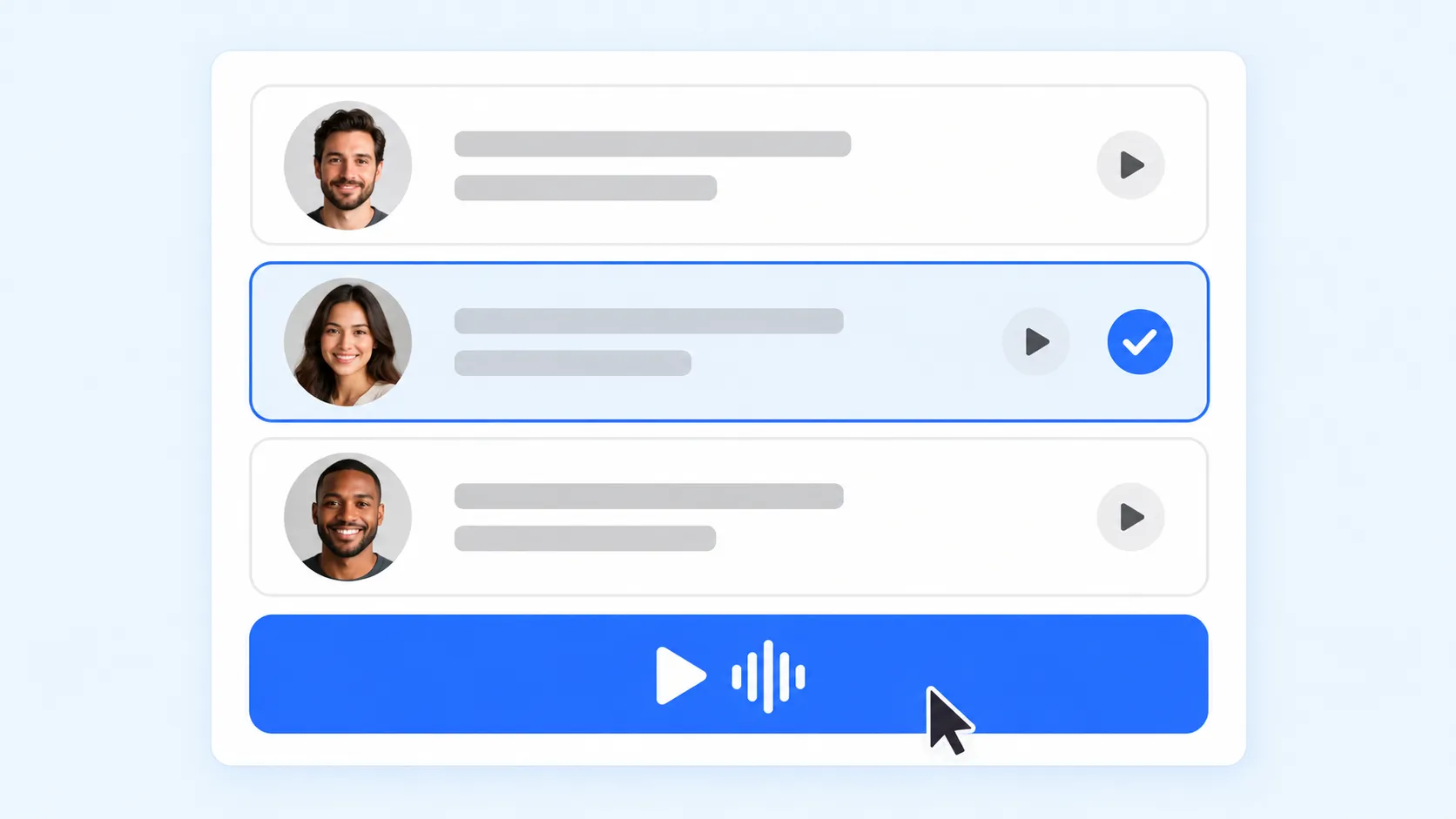
Step 2: Choose a Voice and Generate Audio

Select an available voice and apply any supported settings. Generate a short sample in notegpt text to speech before processing a longer passage, particularly if it contains unfamiliar names, dates, or technical language.

Step 3: Preview and Download Your Speech

Step 3: Preview and Download Your Speech

Listen for missing words, unusual pronunciation, and distracting pauses. Make any necessary changes to the source text, then use the available download option. Keep a copy of the final script so later edits are easier to manage.

Practical Uses for NoteGPT Text to Speech

Video Tutorials and Product Demos

Video Tutorials and Product Demos

Narrate each step without recording your own voice. Turn tutorial scripts into clear voiceovers that walk viewers through the process.

Study Audio from Notes and Articles

Study Audio from Notes and Articles

Turn notes and articles into audio you can replay away from your desk. Explain stray keywords and drop references like “see the table below.”

Story Narration and Creative Drafts

Story Narration and Creative Drafts

Dialogue can look right on the page but sound stiff aloud. Hear your story as a narrated draft to check dialogue, repetition, and pace.

Who Can Benefit from NoteGPT Text to Speech?

Content Creators Preparing AI Narration

Content Creators Preparing AI Narration

Independent creators often handle writing, editing, and publishing themselves. An AI voice generator can support the narration stage, particularly for scripted explainers and demonstrations. The useful starting point is a finished message and a clear idea of how the recording will support the visuals.

Students Building a Listening Routine

Students Building a Listening Routine

Students can use notegpt text to speech to prepare selected material for audio review. Choose passages that benefit from explanation rather than visual inspection, and keep the original notes nearby for checking terminology. Listening can complement reading, practice questions, and other active study methods.

Educators Maintaining Course Content

Educators Maintaining Course Content

Teachers and trainers need explanations they can revisit as a course develops. Keeping narration attached to an editable script makes corrections easier to track. It also provides a foundation for preparing audio versions of instructions, lesson introductions, and supporting materials.

Writers Checking Clarity and Rhythm

Writers Checking Clarity and Rhythm

Writers, editors, and communications teams can use spoken playback as another review pass. Listen for long openings, abrupt changes of subject, and sentences carrying too many ideas. The aim is to make the writing easier to understand, whether the final piece will be read or heard.

User Review Examples: NoteGPT Text to Speech

“I would use notegpt text to speech to listen through a lesson script before recording it. Hearing the explanation helps me find the places where I have assumed too much background knowledge. Those are easy to miss when I am only reviewing the slides.”

Emily Carter

Emily Carter

Instructional Designer

“A spoken draft helps me judge whether my script fits the footage. Sometimes a line reads well but takes too long to say. I would rather discover that while editing the words than after I have arranged the entire video around them.”

Daniel Brooks

Daniel Brooks

Independent Video Creator

“I prefer audio notes that explain an idea in full sentences. Turning a cleaned up set of revision notes into something I can listen to would give me another way to review, especially when I have already spent the day reading on a laptop.”

Sophia Bennett

Sophia Bennett

Postgraduate Student

FAQs About NoteGPT Text to Speech

What is NoteGPT Text to Speech?

NoteGPT text to speech is a free online tool that converts written text into spoken audio using AI voices. Paste your content, choose a voice, and generate a recording directly in your browser without recording it yourself.

Can I download text to speech as an MP3?

Yes. You can download the generated speech as an MP3 for offline listening or add it to a video, presentation, or lesson. Preview the recording before downloading to check that the pronunciation and pacing suit your content.

Does NoteGPT Text to Speech support multiple languages?

Yes. NoteGPT text to speech supports multiple languages, allowing you to create audio from text written in your preferred supported language. Select a suitable voice to match your audience and the tone of your content.

How do I improve AI voice pronunciation?

Spell out abbreviations and write dates or numbers as you want them spoken. For names or specialist terms that sound incorrect, try a phonetic spelling while keeping the intended meaning clear.

Can I convert a long article into audio online?

Yes. NoteGPT text to speech supports long text inputs for most everyday reading and narration needs. For especially lengthy articles, split the content at natural breaks to make each recording easier to review and organize.

How can I make AI speech sound more natural?

Use conversational wording and punctuation that reflects where a speaker would pause. Break long sentences into shorter thoughts and choose a voice suited to the subject. If a passage sounds rushed or awkward, revise its wording and generate it again.

Turn Your Text into Audio Using Text to Speech

Skip the microphone and repeated takes. Use notegpt text to speech to generate narration from your script, preview the delivery, and download the audio for your next project.

Generate Your Voice with AI